Block Level and Inline Elements
The oldest distinction in HTML layout: block boxes stack down the page and fill the width, inline boxes sit inside a line of text. It also decides which elements may contain which.
-
HTML Basics
- What is HTML: The Structure Layer of Every Web Page
- HTML Document Structure: DOCTYPE, html, head and body
- Elements, Tags and Attributes: The Vocabulary of HTML
- HTML Comments: Notes That Ship With Your Code
- Block Level and Inline Elements
- Writing and Running Your First HTML Page
- How a Browser Turns Markup Into a Page
- Text and Formatting
- Links and Navigation
- Images and Media
- Lists
- Tables
-
Forms
- Form Structure: form, action and method
- Input Types: Text, Email, Number, Date and the Rest
- Labels: The Most Important Element in a Form
- Checkboxes, Radio Buttons and Grouping
- select, option, optgroup and datalist
- textarea, File Uploads and Hidden Fields
- Buttons: submit, reset and button
- Built In Form Validation
- GET or POST: What Happens When a Form Is Submitted
- Semantic HTML
- HTML5 Features
- Head and Metadata
- HTML with CSS
- HTML with JavaScript
- Accessibility
-
HTML SEO
- How Google Works: Crawling, Indexing and Ranking
- SEO Friendly HTML Structure
- Titles and Descriptions That Earn Clicks
- Headings and Content Structure for Search
- Internal Linking and Anchor Text
- robots.txt and XML Sitemaps
- Canonical URLs and Duplicate Content
- Structured Data and JSON-LD
- Image SEO
- Core Web Vitals and Mobile Friendliness
- DevTools and Debugging
- Editor Productivity
- HTML Best Practices
- HTML Projects
- Advanced Projects
- Practice and Exams
Concept
Every element the browser draws produces a box, and that box behaves in one of two basic ways. A block level box starts on a new line and stretches across the width available to it. An inline box stays within the current line of text and is only as wide as its content.
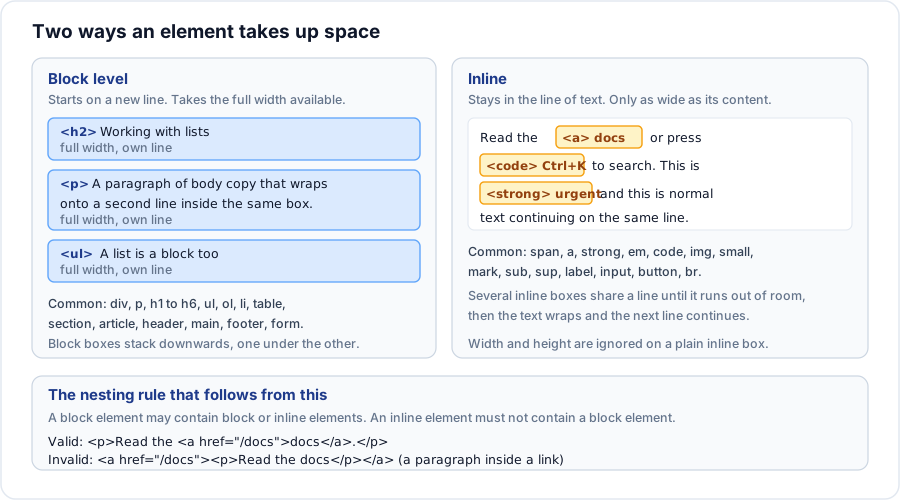
How to tell them apart
| Behaviour | Block level | Inline |
|---|---|---|
| Line break before and after | Yes | No |
| Width | Fills the container by default | Only as wide as the content |
width and height apply | Yes | No |
| Vertical margin applies | Yes | No |
| Horizontal margin and padding apply | Yes | Yes |
| May contain block elements | Usually | No |
Commonly used block elements
div, p, h1 to h6, ul, ol, li, dl, table, form, fieldset, blockquote, pre, hr, figure, header, nav, main, section, article, aside, footer.
Commonly used inline elements
span, a, strong, em, b, i, u, small, mark, code, abbr, cite, sub, sup, br, img, label, input, select, textarea, button.
Example
<h2>Refund policy</h2>

<p>
  Refunds are processed within <strong>seven working days</strong>.
  Write to <a href="mailto:help@example.com">help@example.com</a>
  and quote your <code>order-id</code>.
</p>

<p>Late requests are reviewed individually.</p>
Explanation
The heading and the two paragraphs are block level, so they occupy three stacked bands down the page whatever the window width. Inside the first paragraph, the strong text, the link and the code fragment are inline: they sit in the running text, and when the window narrows the line wraps around them rather than pushing them onto their own lines.
This is exactly the behaviour you want. Emphasis inside a sentence must not break the sentence, and a paragraph must not start halfway through the previous one.
The nesting rule
The distinction is not only about layout. It sets a containment rule that the parser enforces by rewriting your markup.
<!-- invalid: a paragraph inside a link -->
<a href="/post"><p>Read the post</p></a>

<!-- invalid: a heading inside a paragraph -->
<p><h3>Section title</h3></p>

<!-- valid -->
<p>Read <a href="/post">the post</a>.</p>
<h3>Section title</h3>
The p element is the strictest of the group: it may contain inline content only, and the parser closes it automatically the moment a block element appears inside. That is why <p><div>...</div></p> ends up as an empty paragraph, a div, and a stray closing tag - three nodes where you wrote one.
Modern HTML has one important exception. An a element is allowed to wrap block content, so a whole card can be a single link. It still must not contain another interactive element such as a button or a second link.
Important rules
- These are default behaviours from the browser stylesheet, not fixed properties. CSS
displaycan change how an element lays out. - Changing
displaychanges the box only. It does not change the meaning of the element or what it is allowed to contain, and validators still apply the original rules. display: inline-blockis a third behaviour: the box sits in the line like an inline box but accepts width, height and vertical margin like a block.- Whitespace between inline elements is rendered as a space. Between block elements it is discarded.
Common mistakes
- Setting a width on a
spanand concluding CSS is broken. Give itdisplay: inline-blockor use a different element. - Wrapping a paragraph in an inline element and being surprised when the browser splits the nesting apart.
- Using
divfor everything. Adivis a block with no meaning; when a meaningful element exists, use it. - Adding
brtags to create spacing between blocks. A line break is content, not layout. - Assuming vertical padding on an inline element pushes neighbouring lines apart. It paints outside the line box and overlaps.
Best practices
- Choose the element for meaning first, then adjust
displayin CSS if the layout needs it. - Keep paragraphs free of block children; if you need a block, close the paragraph.
- Reach for
spanonly when no meaningful inline element fits, the same way you reach fordiv. - When a whole card should be clickable, wrap it in one anchor rather than putting a link in every child.
Practice
- Sort these into block and inline:
section,label,ol,mark,figure,button,pre,abbr. - Write
<p>Start <div>middle</div> end</p>, open it, and inspect the Elements panel. How many nodes did the parser actually create? - Put a background colour and forty pixels of vertical padding on a
spaninside a paragraph. Describe what happens to the lines above and below, and explain why.