Form Structure: form, action and method
Every form is a container, a set of named controls and a submit button. Learn what action and method do, why name matters more than id, and what the browser sends.
-
HTML Basics
- What is HTML: The Structure Layer of Every Web Page
- HTML Document Structure: DOCTYPE, html, head and body
- Elements, Tags and Attributes: The Vocabulary of HTML
- HTML Comments: Notes That Ship With Your Code
- Block Level and Inline Elements
- Writing and Running Your First HTML Page
- How a Browser Turns Markup Into a Page
- Text and Formatting
- Links and Navigation
- Images and Media
- Lists
- Tables
-
Forms
- Form Structure: form, action and method
- Input Types: Text, Email, Number, Date and the Rest
- Labels: The Most Important Element in a Form
- Checkboxes, Radio Buttons and Grouping
- select, option, optgroup and datalist
- textarea, File Uploads and Hidden Fields
- Buttons: submit, reset and button
- Built In Form Validation
- GET or POST: What Happens When a Form Is Submitted
- Semantic HTML
- HTML5 Features
- Head and Metadata
- HTML with CSS
- HTML with JavaScript
- Accessibility
-
HTML SEO
- How Google Works: Crawling, Indexing and Ranking
- SEO Friendly HTML Structure
- Titles and Descriptions That Earn Clicks
- Headings and Content Structure for Search
- Internal Linking and Anchor Text
- robots.txt and XML Sitemaps
- Canonical URLs and Duplicate Content
- Structured Data and JSON-LD
- Image SEO
- Core Web Vitals and Mobile Friendliness
- DevTools and Debugging
- Editor Productivity
- HTML Best Practices
- HTML Projects
- Advanced Projects
- Practice and Exams
Concept
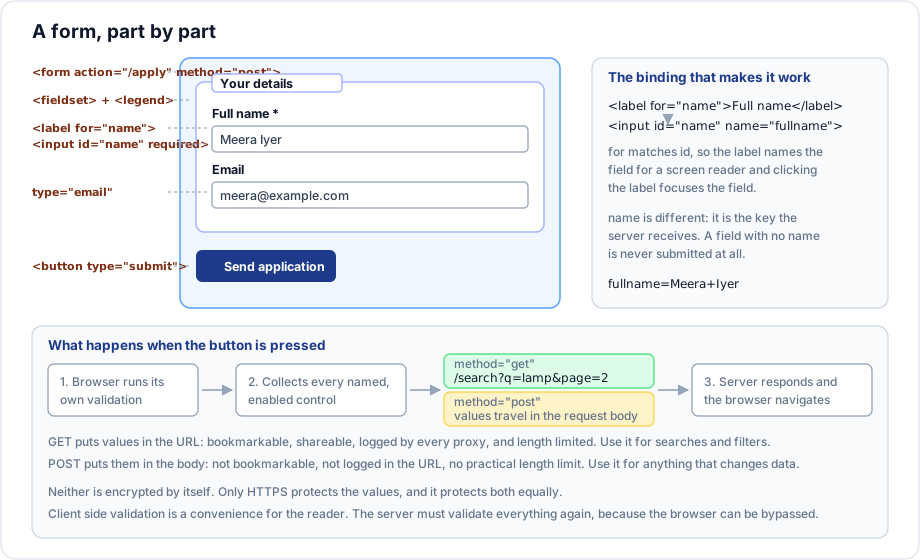
A form collects values from a reader and sends them somewhere. The form element is the container, and it carries the two attributes that decide where the values go and how they travel.
Syntax
<form action="/apply" method="post">
  <!-- labelled controls -->
  <button type="submit">Send</button>
</form>| Attribute | Purpose |
|---|---|
action | The URL the values are sent to. Omitted means the current page. |
method | get or post. Defaults to get. |
enctype | How the body is encoded. Needed as multipart/form-data for file uploads. |
novalidate | Switch off the browser built in validation. |
autocomplete | on or off for the whole form. |
target | Where to show the response. Rarely useful. |
The name attribute is what gets submitted
This trips up almost everyone once. A control is submitted under its name, not its id. The id exists so a label can point at it and so scripts and CSS can find it. They are two different jobs and both are usually needed.
<label for="email">Email address</label>
<input type="email" id="email" name="email_address">
The server receives email_address=.... The id never leaves the browser.
A control with no name is not submitted at all. It is the first thing to check when a value mysteriously fails to arrive.
What the browser sends
On submit, the browser gathers every control that is:
- inside the form (or associated with it through a
formattribute), - has a
name, - is not
disabled, - and, for checkboxes and radios, is checked.
Those become name and value pairs. With method="get" they are appended to the action URL as a query string. With method="post" they travel in the request body.
GET  /search?q=brass+lamp&sort=price
POST /apply        (body: name=Meera+Iyer&email=meera%40example.com)
Example
<form action="/enquiry" method="post">
  <fieldset>
    <legend>Your details</legend>

    <p>
      <label for="name">Full name</label>
      <input type="text" id="name" name="name" required autocomplete="name">
    </p>

    <p>
      <label for="email">Email address</label>
      <input type="email" id="email" name="email" required autocomplete="email">
    </p>
  </fieldset>

  <fieldset>
    <legend>Your enquiry</legend>

    <p>
      <label for="course">Course of interest</label>
      <select id="course" name="course">
        <option value="">Please choose</option>
        <option value="design">Design</option>
        <option value="data">Data science</option>
      </select>
    </p>

    <p>
      <label for="message">Message</label>
      <textarea id="message" name="message" rows="5"></textarea>
    </p>
  </fieldset>

  <input type="hidden" name="source" value="website">

  <button type="submit">Send enquiry</button>
</form>
Explanation
Each control has a label bound to it and a name for the server. The two fieldset elements group related fields and each carries a legend, which is announced before the fields inside it. The hidden field carries a value the reader never sees but the server needs. The submit button ends the form.
fieldset and legend
fieldset groups related controls; legend names the group and must be its first child.
<fieldset>
  <legend>Preferred contact method</legend>
  <label><input type="radio" name="contact" value="email"> Email</label>
  <label><input type="radio" name="contact" value="phone"> Phone</label>
</fieldset>
For radio buttons and checkbox groups this is not optional. Without a legend, a screen reader announces Email, radio button with no indication of what question is being answered. The legend supplies the question.
Do not wrap every single field in its own fieldset. Group what genuinely belongs together.
Forms outside the form element
The form attribute lets a control live anywhere in the document and still belong to a form:
<form id="filters" action="/search">...</form>

<!-- elsewhere on the page -->
<button type="submit" form="filters">Apply filters</button>
Useful when a design puts the action button in a sticky bar outside the form markup.
Important rules
- Forms must not be nested. One form inside another is invalid and the parser will discard the inner one.
formis a block level element and may contain almost anything except another form.- A control with no
nameis never submitted. - A
disabledcontrol is never submitted; areadonlyone is. - Pressing
Enterin a text field submits the form via its first submit button. That is expected behaviour, not a bug. - File uploads require
method="post"andenctype="multipart/form-data".
Common mistakes
- Giving controls an
idbut noname, then wondering why the server received nothing. - Nesting forms, usually by accident when a template is included inside another.
- Using
disabledon a field whose value you still need. Usereadonly. - Building a form out of
divelements and a click handler, losing keyboard submit, autofill and validation. - Omitting
methodand accidentally sending sensitive values in the URL. - Placing a fieldset around every field, producing a wall of nested groups.
Best practices
- Always state
methodexplicitly, even when it isget. - Use a real
formelement even for forms handled entirely in JavaScript. You inherit validation, autofill and keyboard behaviour for free. - Group related fields in a
fieldsetwith alegend, and always for radio and checkbox groups. - Add
autocompletetokens so browsers can fill fields correctly. - Keep one clear submit button, and place it at the end.
- Validate on the server regardless of what the browser checks.
Practice
- Build an enquiry form with two fieldsets, five labelled fields and one submit button. Submit it with
method="get"and read the query string. - Remove the
namefrom one field and observe what the server receives. - Compare
disabledandreadonlyon the same field and note which value arrives. - Move the submit button outside the form and reconnect it with the
formattribute.