Elements, Tags and Attributes: The Vocabulary of HTML
Tag, element and attribute are three different things, and interviews test the difference constantly. Learn the anatomy, the void elements, boolean attributes and the global attributes worth knowing.
-
HTML Basics
- What is HTML: The Structure Layer of Every Web Page
- HTML Document Structure: DOCTYPE, html, head and body
- Elements, Tags and Attributes: The Vocabulary of HTML
- HTML Comments: Notes That Ship With Your Code
- Block Level and Inline Elements
- Writing and Running Your First HTML Page
- How a Browser Turns Markup Into a Page
- Text and Formatting
- Links and Navigation
- Images and Media
- Lists
- Tables
-
Forms
- Form Structure: form, action and method
- Input Types: Text, Email, Number, Date and the Rest
- Labels: The Most Important Element in a Form
- Checkboxes, Radio Buttons and Grouping
- select, option, optgroup and datalist
- textarea, File Uploads and Hidden Fields
- Buttons: submit, reset and button
- Built In Form Validation
- GET or POST: What Happens When a Form Is Submitted
- Semantic HTML
- HTML5 Features
- Head and Metadata
- HTML with CSS
- HTML with JavaScript
- Accessibility
-
HTML SEO
- How Google Works: Crawling, Indexing and Ranking
- SEO Friendly HTML Structure
- Titles and Descriptions That Earn Clicks
- Headings and Content Structure for Search
- Internal Linking and Anchor Text
- robots.txt and XML Sitemaps
- Canonical URLs and Duplicate Content
- Structured Data and JSON-LD
- Image SEO
- Core Web Vitals and Mobile Friendliness
- DevTools and Debugging
- Editor Productivity
- HTML Best Practices
- HTML Projects
- Advanced Projects
- Practice and Exams
Concept
Three words get used interchangeably in conversation and mean three different things. Getting them straight makes every later note easier to read, and the distinction is one of the most common opening questions in a front end interview.
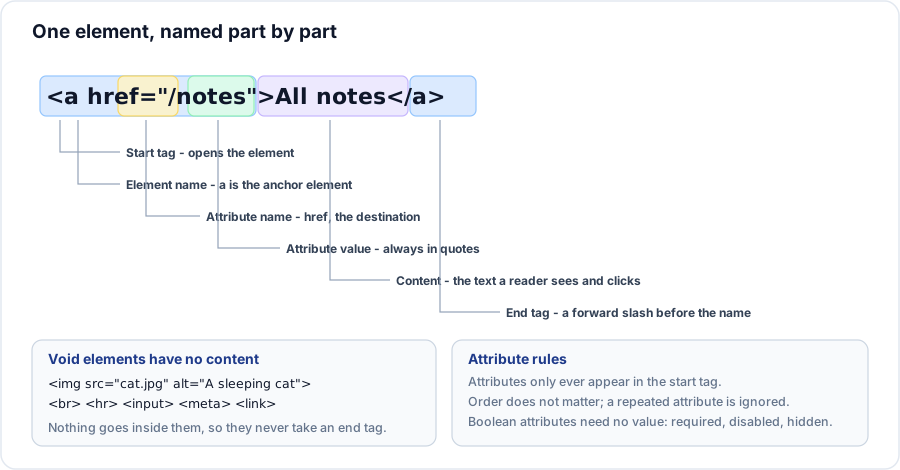
| Term | What it means | In <a href="/notes">All notes</a> |
|---|---|---|
| Tag | A piece of syntax in angle brackets | <a href="/notes"> and </a> are the two tags |
| Element | Start tag plus content plus end tag, as one node | The whole anchor, including the words All notes |
| Attribute | A name and value pair configuring the element | href="/notes" |
The practical version: you type tags, the browser builds elements. The DOM tree contains elements, never tags.
Syntax
<name attribute="value" other="value">content</name>- The element name follows the opening bracket with no space.
- Attributes are separated by spaces and appear only in the start tag.
- The end tag repeats the name after a forward slash and takes no attributes.
Void elements
Some elements have no content, so they have nothing to wrap and take no end tag. These are called void elements, and writing a closing tag for one is an error.
<br>      <!-- line break -->
<hr>      <!-- thematic break -->
<img src="chart.png" alt="Sales by quarter">
<input type="email" name="email">
<meta charset="utf-8">
<link rel="stylesheet" href="site.css">
<source src="clip.webm" type="video/webm">
The trailing slash form, <br />, is left over from XHTML. HTML tolerates it and ignores the slash entirely, so both forms produce the same element. Pick one and keep the file consistent.
Attribute values and quotes
An unquoted value works only while it contains no space, no quote and no angle bracket. The moment it does, the parser reads the value as ending at the first space and treats the rest as more attributes.
<!-- breaks: class becomes "card", and "wide" becomes an attribute -->
<div class=card wide>

<!-- correct -->
<div class="card wide">
Always quote. Double quotes are the convention; single quotes are equally valid and useful when the value itself contains a double quote.
Boolean attributes
Some attributes are switches. Their presence turns the behaviour on and their absence turns it off - the value is irrelevant.
<input type="email" required>
<input type="text" disabled>
<option value="in" selected>India</option>
<video src="clip.mp4" controls muted loop></video>
This is the trap: required="false" still makes the field required, because the attribute is present. To switch a boolean attribute off you remove it.
Global attributes
A handful of attributes may be used on any element.
| Attribute | Purpose |
|---|---|
id | A unique name for one element in the document. Used by fragment links, labels and scripts. |
class | One or more space separated names, reusable across many elements. The main styling hook. |
title | Advisory text, usually shown as a tooltip. Not reliably reachable by keyboard or touch. |
style | Inline CSS for one element. Convenient, hard to override, better avoided. |
hidden | Hides the element from every reader, visual and assistive alike. |
lang | The language of this element and its descendants. |
dir | Text direction: ltr, rtl or auto. |
tabindex | Whether and in what order the element receives keyboard focus. |
data-* | Your own custom data, readable from CSS and JavaScript. |
Example
<article class="card featured" id="post-14" data-published="2026-03-02">
  <h2>Reading a bus timetable</h2>
  <p>Every route in the city, and the two that are worth waiting for.</p>
  <img src="/images/bus-stop.jpg" alt="A crowded bus stop at dusk" width="640" height="360" loading="lazy">
  <a href="/posts/bus-timetable" class="read-more">Read the full post</a>
</article>
Explanation
The article is one element with three attributes: two class names, an id unique to this post, and a custom data attribute holding a date that no browser understands but your own script can read with element.dataset.published. Inside it are four more elements, one of which - the image - is void and therefore has no end tag, and one of which - the anchor - wraps text a reader can click.
Important rules
- Element names are case insensitive, but lower case is the universal convention.
- An
idmust be unique in the document. Duplicate ids break fragment links, label association andgetElementById. - Attribute order carries no meaning. A repeated attribute is a parse error; the first value wins.
- Elements must nest, never overlap.
<strong><em>text</strong></em>is invalid, and each browser repairs it its own way. - Custom attributes must use the
data-prefix. Anything else is invalid and may collide with a future standard attribute.
Common mistakes
- Answering a tag is an element in an interview. The tag is syntax; the element is the node built from it.
- Writing
</br>or</img>. Void elements never close. - Using
required="false",disabled="no"orchecked="0"and expecting the feature to be off. - Reusing one
idon several elements because it happened to style correctly. - Relying on
titleto convey required information. Touch users and keyboard users often never see it. - Leaving values unquoted and losing everything after the first space.
Best practices
- Lower case names, quoted values, one consistent quote style across the project.
- Reserve
idfor things that genuinely need addressing - link targets, form labels, script hooks - and useclassfor everything else. - Keep attribute order stable: identity first (
id,class), then behaviour (href,type), then extras (data-*,aria-*). - Prefer
data-*to inventing an attribute name, and prefer a class tostyle.
Practice
- In
<img src="a.png" alt="A map" width="300">, count the tags, the elements and the attributes. Explain why the three counts differ. - Which of these are void:
p,hr,span,input,li,meta,source? - Explain why
<input disabled="false">produces a disabled field, and write the correct way to enable it. - Add three
data-attributes to a product card that a script could later use for filtering.